





AI-generated illustration for AI presenters for employee communication; no real project is depicted.
AI presenters for employee communication are useful when an organisation needs a consistent spoken explanation of an approved message. Give the script a named owner, define where it will appear and make sure employees know how to ask a real person about their circumstances.
This promotional guest article features Leadde. Its option to create a talking head video from a photo can help a communications team prepare a presenter-led draft from an approved portrait and script.

Where do AI presenters for employee communication fit?
They fit messages whose meaning can be established before the video is produced. Examples include an introduction to an employee learning initiative, an explanation of how to find programme information or a reminder of an agreed participation process.
Name the manager or committee responsible for the programme and its promises. Employees should be able to identify who approved the message even when a synthetic presenter delivers it.
For a hypothetical CSR volunteering announcement, explain the programme’s purpose and direct eligible employees to current details and a contact for questions. Keep the script to those facts. A synthetic executive claiming to have taken part in a future event would give employees a false account of the programme.
Keep sensitive individual conversations outside this format. An approved general explanation cannot settle an employee’s particular eligibility, personal circumstances or concern about a workplace decision.
Write a message brief before selecting a face
State what the employee should do after watching. A brief that says only “Increase awareness” leaves the writer guessing which information to include.
A stronger brief might say: employees should know where to read the current volunteering information and how to ask the programme coordinator whether a proposed activity fits. The script can then focus on that route.
| Brief field | Example to adapt | Owner to confirm it |
| Purpose | Explain where programme information lives | Communications lead |
| Audience | Employees receiving the internal announcement | Programme manager |
| Action | Read the current details and contact the coordinator | Operational owner |
| Variable facts | Dates, locations and participation conditions | Programme manager |
| Presenter use | Approved portrait and permitted channels | Person responsible for the asset |

AI-generated planning meeting for AI presenters for employee communication about a volunteering programme.
Replace the sample entries with the programme’s confirmed information before using the brief.
Put the required action in ordinary language. The W3C’s writing guidance emphasises clear instructions and meaningful link text. A message that names the destination and explains its purpose gives employees more to act on than a vague invitation to “find out more.”
Separate the script from the facts that will change
Keep stable explanations distinct from changing details. The purpose of a programme may remain the same while its schedule or contact route changes.
You can introduce the purpose in the video and point to a maintained page for current dates. If the date itself is essential to the message, include it, but mark that scene for review whenever the schedule changes. Check the affected clip even when the programme’s purpose remains the same.
Prepare the script as spoken language. Read names, abbreviations and internal programme titles aloud. Replace a dense sentence with a clear sequence, while preserving any conditions that affect what the employee should do.
Consider the difference between “Everyone can participate” and “The programme page explains who can participate.” The first makes a broad promise. The second directs people to the actual conditions. Choose the wording that the programme owner can substantiate.
Match the presenter to the employee message
The public Leadde talking-head page describes a workflow based on a photo and a script. Use an authorised portrait, prepare the approved wording and inspect the resulting draft before distributing it.
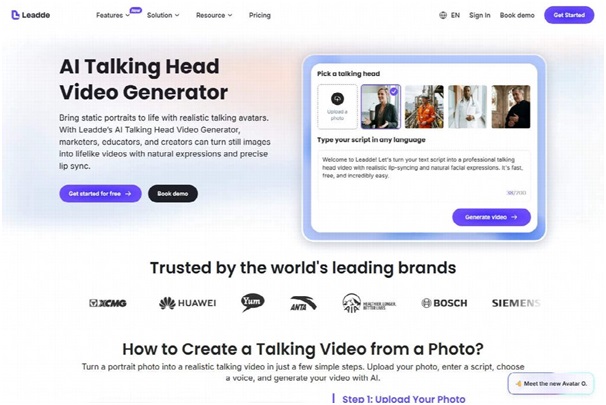
Public Leadde page for AI presenters for employee communication, captured on September 9, 2026; not a hands-on test.
For the hypothetical volunteering announcement, a neutral script could say: “The volunteering page explains the activities currently available and how to register interest. Read the participation details there, then contact the programme coordinator if you need clarification.” Put the page title on screen and the working link in the accompanying post. This gives employees a route they can follow without making the presenter recite an address.
A portrait does not establish permission to impersonate someone’s voice or make them appear to endorse new statements. Confirm the intended portrayal separately, especially when the person is recognisable within the organisation.
For a procedural message, try a calm introduction and restrained gestures. Listen closely to people’s names and leave enough time for employees to follow the required action.
Give the approval process specific questions
Assign reviewers specific questions so each person knows what they are approving.
The programme owner checks the facts and conditions. Communications checks the clarity and intended audience. The person responsible for the portrait checks that the portrayal fits the approved use. Someone unfamiliar with the production checks whether the next step is understandable.
| Reviewer question | Evidence to inspect | Possible action |
| Is the promise accurate? | Approved programme information | Revise the claim |
| Is the next step available? | Actual link or contact route | Fix the destination |
| Is the portrayal authorised? | Agreed asset and usage scope | Replace or approve the asset |
| Is the final delivery clear? | Exported video on the intended channel | Adjust sound, captions or layout |
AI-generated scene of an employee asking a colleague about an announcement made with AI presenters for employee communication.
Label synthetic content appropriately for the destination. For example, YouTube’s disclosure policy addresses realistic, meaningfully altered or synthetic content. That is a rule for that platform; internal channels may offer different ways to explain how a video was made.
Tell viewers when the presenter or voice is synthetic, using a short explanation appropriate to the channel. This helps employees understand that they are watching a generated announcement rather than a recording of an in-person delivery.
Keep the published message up to date
Store the approved script, final file, destination and content owner together. Add a note about which facts would trigger a new review.
When a programme changes, update the maintained information page and check the video against it. Replace a clip that gives the wrong action, even if it still looks current. If someone raises a question the video cannot answer, route it to the accountable person and consider whether the general explanation needs clarification.
Before making the next announcement
Does every update need a presenter?
No. A short written notice may be more useful for a small factual change. Use a presenter when a spoken explanation adds context or makes the sequence easier to follow.
Can the clip stand in for a manager’s response?
A general video can establish shared information. It cannot resolve personal circumstances or replace a conversation that needs judgement and accountability.
For the first announcement, agree on the message and required action with the person responsible for the programme. Check both in the exported file, then keep the brief and review notes for the next update.